This document describes how to authenticate at the MFD with the HP Cloud Terminal.
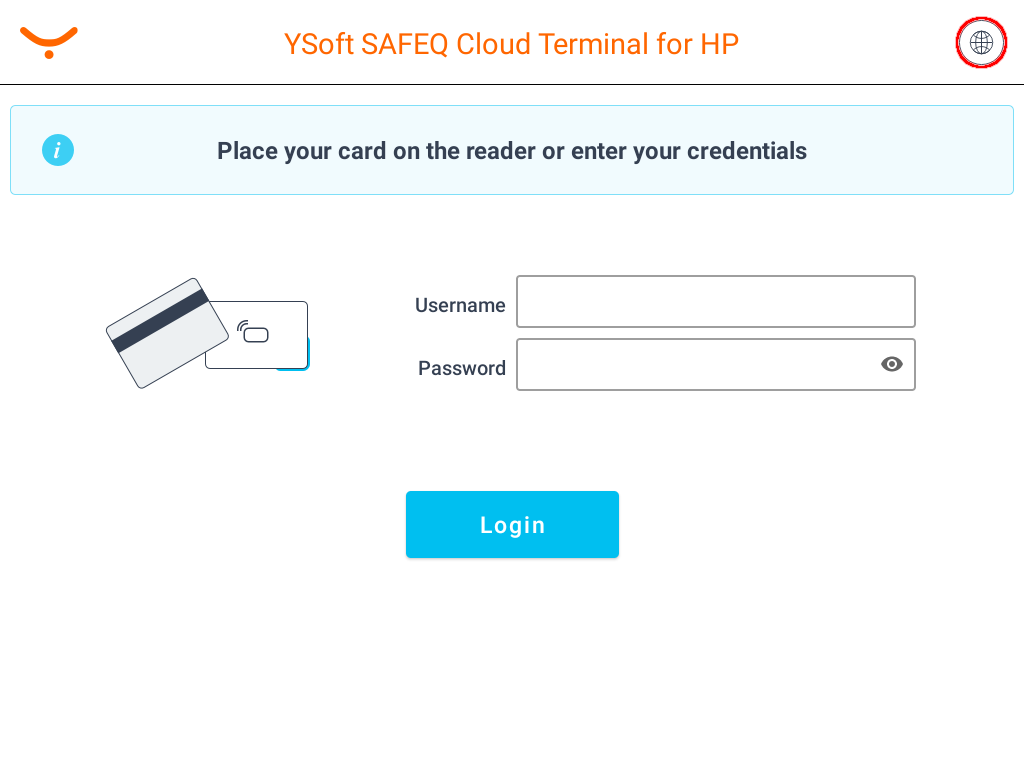
Logging in with a card or username/password
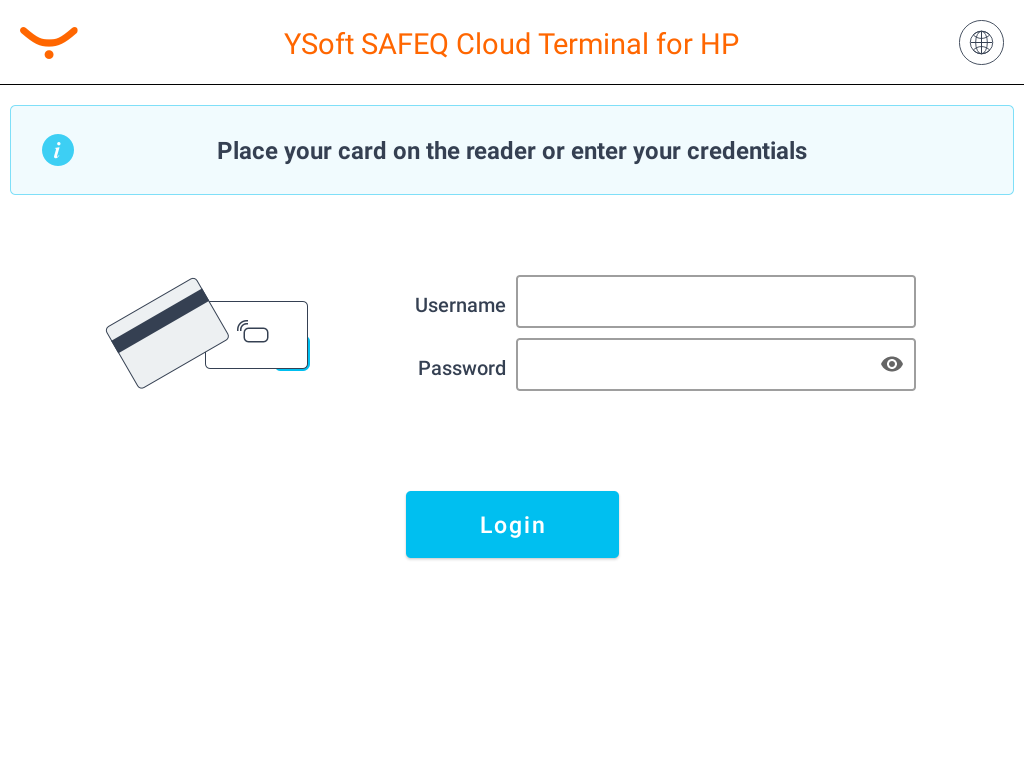
Put your card on the reader attached to the printer.
Or enter your username/password.
Enter your username.
Enter your password.
Tap Login.
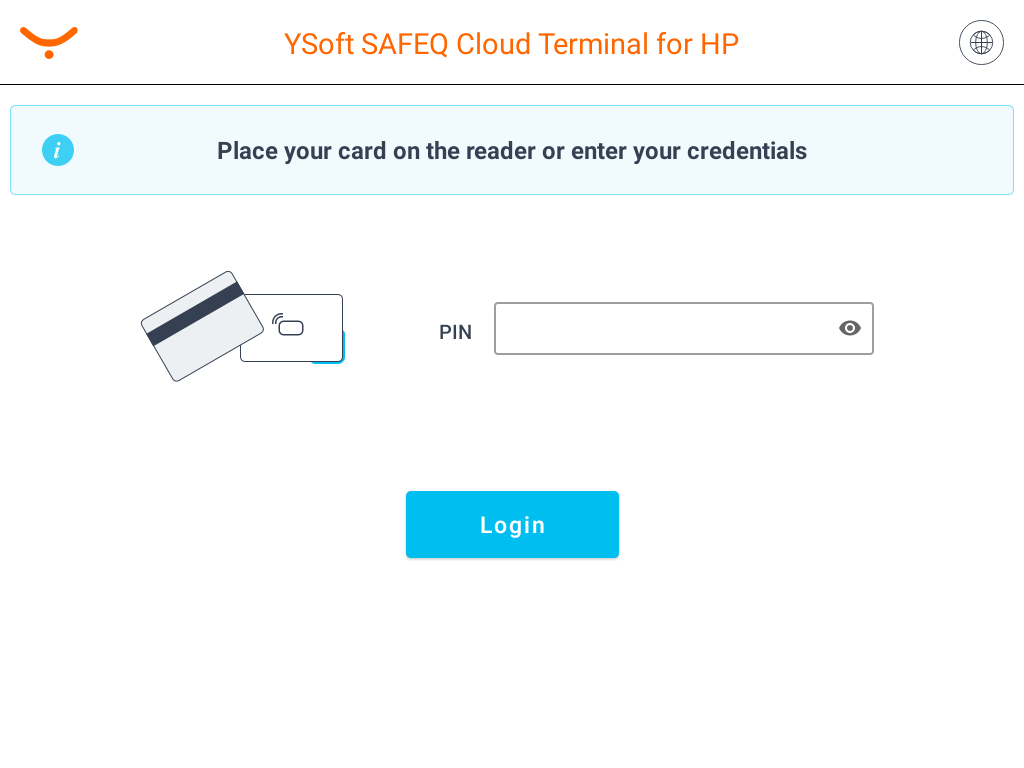
In case that another user is logged in, you will log him/her out by placing your card on the card reader. If you want to log in yourself, place your card once again on the card reader.
Logging out
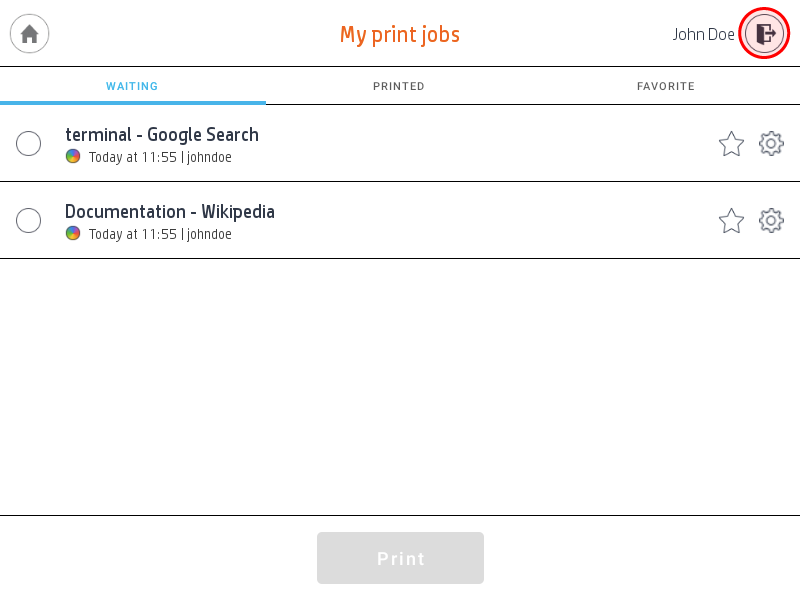
To log out from the application, tap the icon Log out (highlighted in the image) on the printer display or place your card on the card reader.
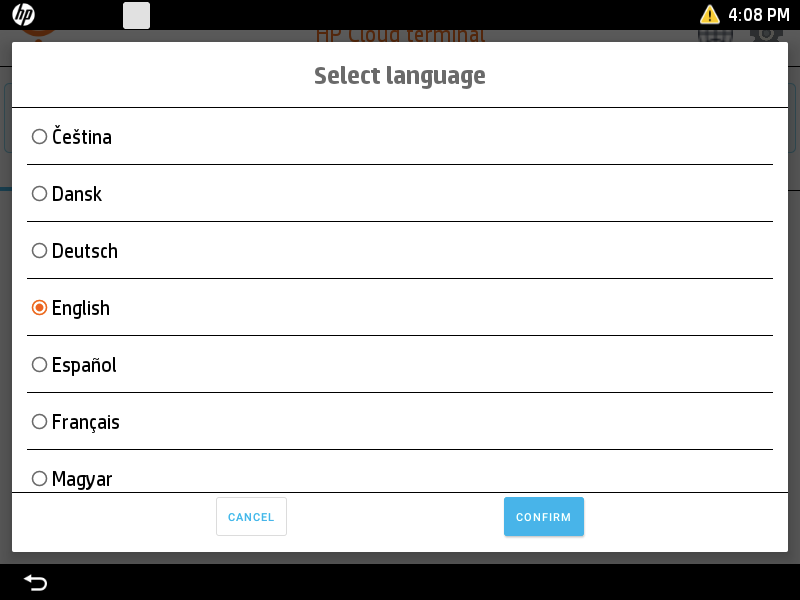
Select Language
Tap the language icon.
Select the language and tap Select. The Select a language dialog is hidden.
Self Card Registration
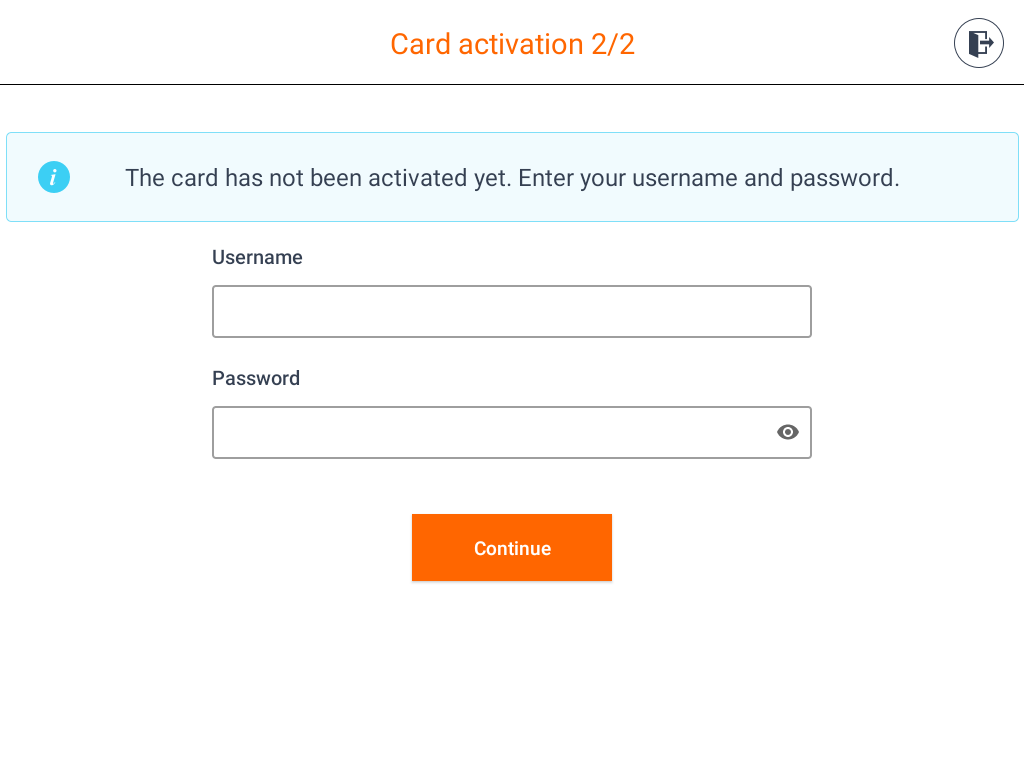
Users can activate their cards at the MFD's terminal. After swiping an unactivated card, users will see on of the following screens:
- If there is more than one card registration option available, user will have a chance to choose which option to use by clicking on the respective button.
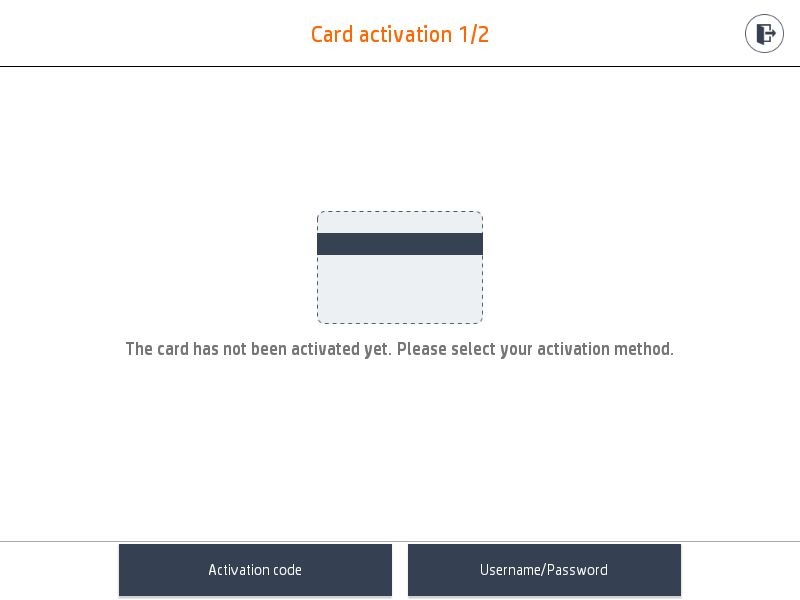
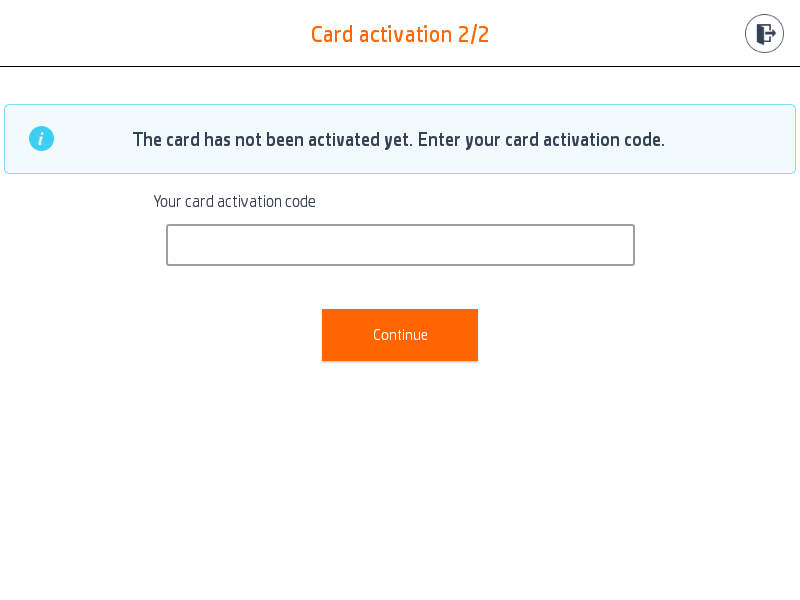
- If there is only one option for self card assignment available, the user is presented with one of the following screens:
- Activation code – Users obtain a Card Activation Code and enter the code on the terminal to activate their card.
- Username and password – Users log in to their account on the terminal and the card is activated.
- Card Activation Code from a provider - User obtains the code by logging into their company account via the provided link or the QR code, then proceeds with the activation by entering the code and activating the card.
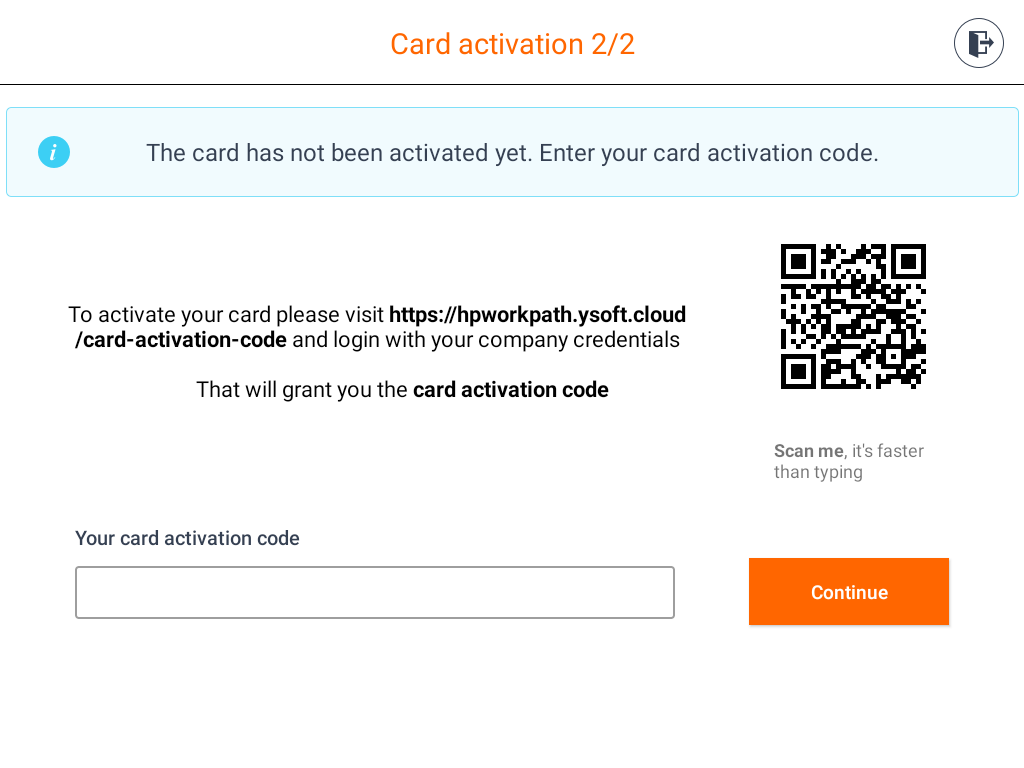
- Activation code – Users obtain a Card Activation Code and enter the code on the terminal to activate their card.
Using an activation code
Obtaining the Card Activation Code
To activate a card using an activation code, the user needs a Card Activation Code. This code can be obtained in the following ways:
Administrator Generated Code
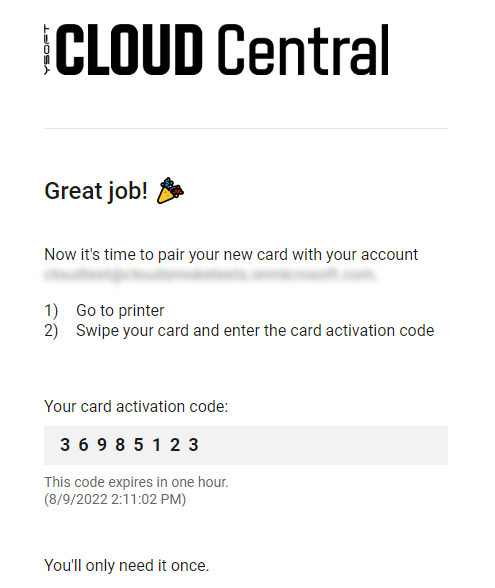
The administrator can assign card activation codes to user accounts and send the codes to users by email.
If the administrator has enabled the code displaying, users can see their card activation code on the Dashboard in the end user interface.
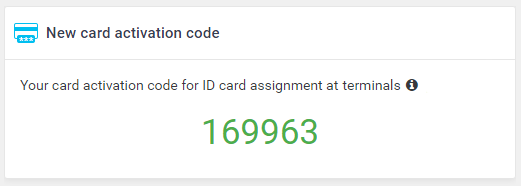
User Generated Code
The administrator can enable users to generate their own card activation code in the end user interface.
To generate the card activation code, users must do the following:
- Log in to the end user interface. The Dashboard is displayed as default.
- On the Dashboard, navigate to the Access credentials widget and click Generate card activation code.
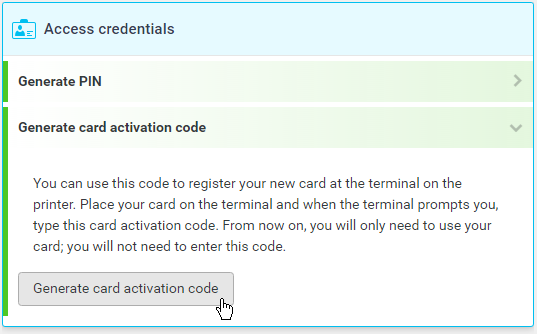
If the administrator has enabled the code displaying, users can see their card activation code on the Dashboard.
Card activation code provider
- Open the web address or scan the QR code shown on the device.
- Sign in using the company account.
- After successful authentication, you can use the provided card activation code to activate the card.