Provide a private key and certificate (.key and .crt files) on both machines.
Configure any non-server clients to trust the certificate's root signing authority. For more information please see: https://learn.microsoft.com/en-us/sql/database-engine/configure-windows/configure-sql-server-encryption?view=sql-server-ver17
Configure the server(s) to force all incoming connections to use SSL/TLS so that any clients that do not support this will fail to connect. In SQL Server Configuration Manager, set the
ForceEncryptionparameter to "Yes" in the Protocols section.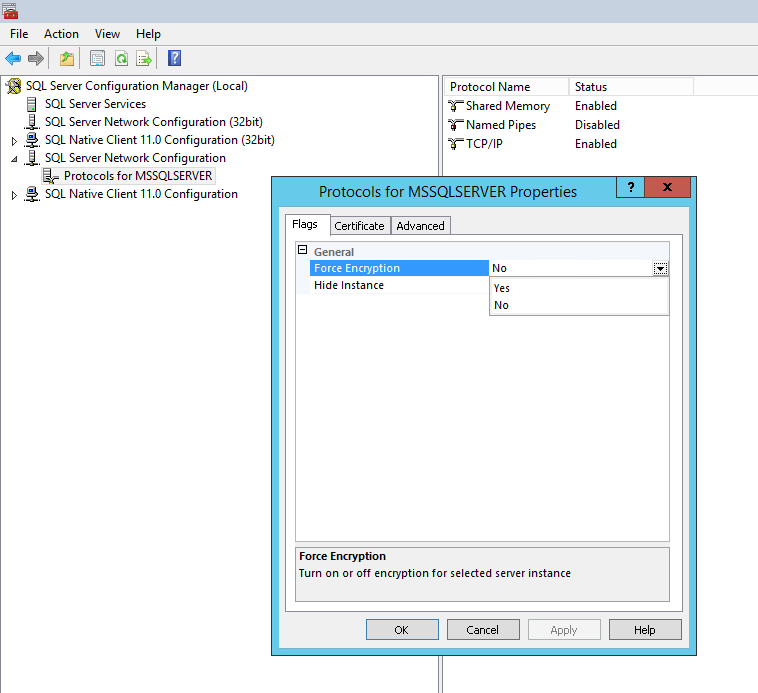
This solution is not bullet-proof. The database links are generally a potential security risk, when the user permissions are not configured properly and e.g. xp_cmdshell with admin rights is accessible on some of the database nodes. For more information please refer to https://blog.netspi.com/how-to-hack-database-links-in-sql-server/.
For more information how to create a certificate, please see the chapter System communication hardening
Adding the MSSQL certificate to Dispatcher Paragon
After configuring SSL/TLS on the MSSQL server, the certificate must be trusted by SafeQ6. Make sure that the CA of the MSSQL certificate is imported into the Windows Trusted Root Certification Authorities store.
In order to get a fully secured MSSQL connection via certificate, build 117 or above is mandatory.
Manual configuration for existing installations on v122+
Add or update the following properties in
C:\DispatcherParagon\Management\conf\management-service.properties:
database.msSql.encrypt = truedatabase.msSql.trustServerCertificate = falseRestart Dispatcher Paragon Management Service after importing the certificate.
For full reference of database configuration properties see Dispatcher Paragon Server Requirements - Database Settings and Configuration.