Application failover configuration
YSoft SafeQ Terminal Pro 4 and 4.5 is communicating to the Dispatcher Paragon Spooler Controller via Dispatcher Paragon Terminal Server. In case that Dispatcher Paragon Terminal Server becomes unavailable and there is another Dispatcher Paragon Terminal Server configured and currently available then Dispatcher Paragon Terminal Pro starts using the another one for further communication. If there is a outage of Dispatcher Paragon Terminal Server during user session then the user session is lost. However when Dispatcher Paragon Terminal Pro successfully switches to another available Dispatcher Paragon Terminal Server then the user can login again right away the login screen is displayed on the screen of Dispatcher Paragon Terminal Pro.
Standard procedures for the load balancing and failover via Microsoft Cluster Server or Failover using Windows Network Load Balancing Services (NLB) does not apply Dispatcher Paragon Terminal Pro.
Multiple failover IP addresses configuration
Dispatcher Paragon Terminal Pro failover is enabled in SafeQ by default provided that there is more than one IP address of Dispatcher Paragon Terminal Server configured. Multiple IP addresses for application failover is configurable via Spooler Controller Group. Follow Near Roaming section in Configuring Print Roaming. The configuration of multiple IP addresses is propagated to the Dispatcher Paragon Terminal Pro either by reinstallation of Dispatcher Paragon Terminal Pro or upon every user logout operation. The administrator can check whether all configured IP addresses were properly propagated to Dispatcher Paragon Terminal Pro in the service menu.
Primary node selection
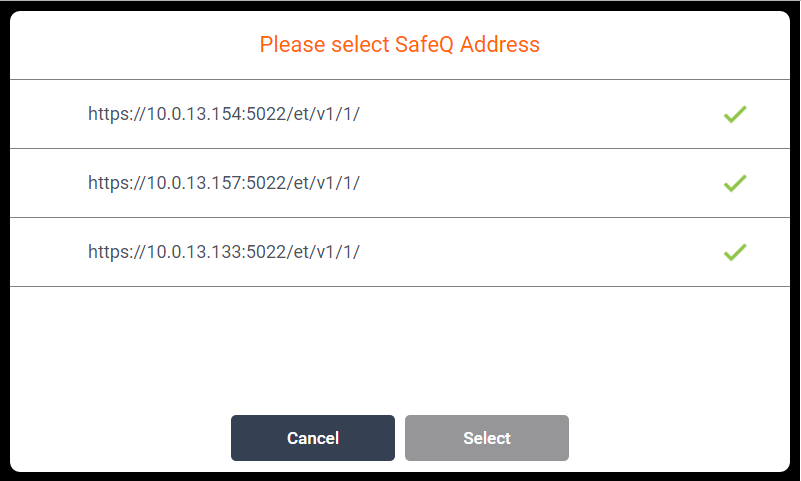
Default primary node is the one which is used during Dispatcher Paragon Terminal Pro installation. The primary node can be changed in the service menu of Dispatcher Paragon Terminal Pro.
On the picture below administrator can select one primary server.
Application failover behavior
If the primary Dispatcher Paragon Terminal Server becomes unavailable, Dispatcher Paragon Terminal Pro will automatically find another Dispatcher Paragon Terminal Server according to strategy selected in configuration. Then the Dispatcher Paragon Terminal Pro will use the resolved Dispatcher Paragon Terminal Server as the primary until it becomes unavailable or until some preconfigured time interval passes. Then another server is found and selected as primary in dependency on selected failover strategy. With some strategies, the Dispatcher Paragon Terminal Pro may automatically switch back to a preferred Dispatcher Paragon Terminal Server if its functionality is restored.
Limitations
This failover configuration does not provide Load-balancing.
When the copy job is in progress and current Dispatcher Paragon Terminal Server becomes unavailable then the job is not accounted.
Strategies for server selection for Dispatcher Paragon Terminal Pro
Default strategy
With this strategy, the Dispatcher Paragon Terminal Pro will always check for the Dispatcher Paragon Terminal Server server with the fastest response. The servers are checked for their availability in parallel and the first Dispatcher Paragon Terminal Server which responses is taken as the primary for all ongoing communication.
Primary node preferred
With this strategy, the primary node is always preferred. In this scenario, the primary node is the Dispatcher Paragon Terminal Server from which the Dispatcher Paragon Terminal Pro was originally installed. If the primary node is not available, another server is selected using the default strategy described above. If the "primary node" becomes available, the Dispatcher Paragon Terminal Pro will connect to it when the current one becomes unavailable or after the preconfigured time interval passes.
Configuring failover strategy for Dispatcher Paragon Terminal Pro
Log in to the Dispatcher Paragon management interface with sufficient rights to administer printers (for example, "admin")
Go to System > Configuration from the menu
Set enableNetworkLoadBalancer property to enabled
Set srteFailoverStrategy property to required strategy. The option determines how the primary server is resolved in the case when the current server becomes unavailable. The strategies are described in the section above.
Set srteFailoverCheckInterval property to required value. It sets the maximal time (in minutes) after which the primary Dispatcher Paragon Terminal server is resolved according to selected strategy. The minimal allowed value of this property is one.
Save the configuration and reinstall all affected Dispatcher Paragon Terminal Pro. Alternatively login in and logout at Dispatcher Paragon Terminal Pro. Configuration is propagated upon user logout operation.
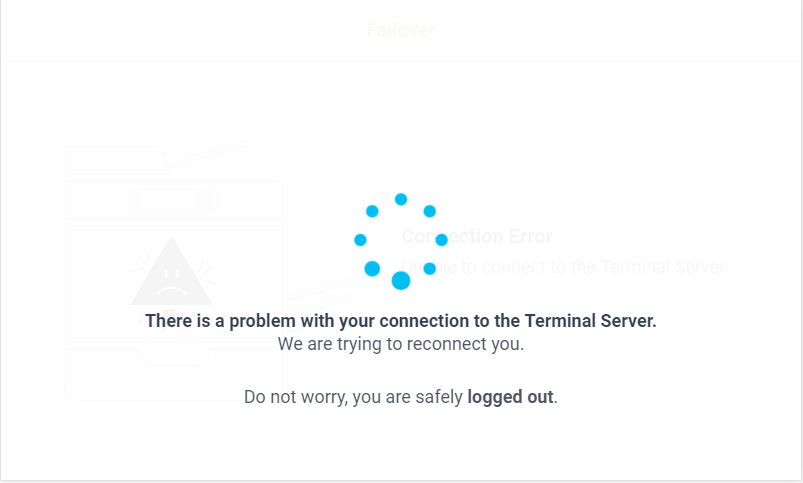
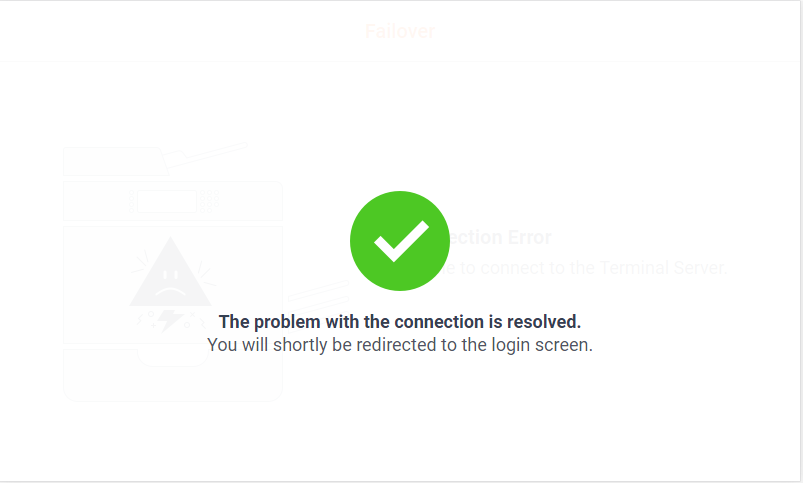
On the screens below, you can see failover in progress. On the first picture, there is information that current connection to the server is lost and the new server is being searched for. On the second picture, there is information that new active server was found.