Workflow scanning
Log in to the embedded terminal.
You may be redirected directly to the Scan application. In that case, skip this step.
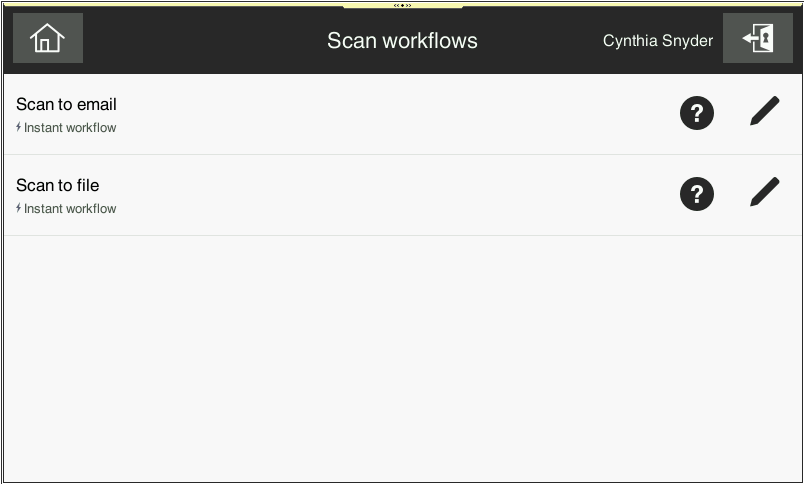
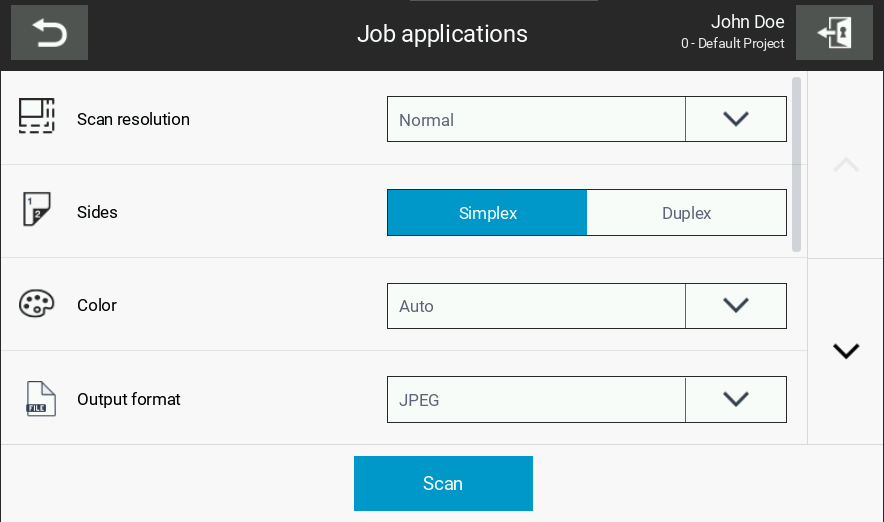
The workflow configuration might not allow to configure scan or workflow settings. In that case, the tab is not shown.
When you are ready, tap the Scan button to initialize the scan job.
When scanning is finished, you receive information about the result. If the scan completes successfully, a message indicating success is displayed. If the scan is interrupted or fails, a message indicating it was stopped is shown.
Note that the scan success message is displayed only when the "Merging Originals" option is enabled.