Prerequisites
Java (minimal version Java 11) has to be installed on the server with YSoft Shell (alternatively, configure the JAVA_HOME system property in import_tool.bat).
How to Run
Run YSoft Shell with "import_tool.bat" and then run the required command (run help for a list of possible commands or see the documentation on the Spring shell documentation page).
Run YSoft Shell with the required command immediately—run "import_tool.bat <command> -- required parameters".
YSoft Shell Plugins (commands)
See the Spring shell documentation page for general use and possible default parameters.
Security
When YSoft Shell needs to connect to the server, it is necessary to pass the host name to the server (it depends on the command).
There are two possibilities for providing the URL to CLI - it can connect through HTTP and a more secure HTTPS protocol (e.g., http://localhost vs. https://localhost). If it connects through HTTPS, then the server’s certificate must be trusted on the machine - i.e. its certificate’s CA needs to be present in the Windows Trusted Root Certification Authorities store.
Failure to verify the https certificate trust may produce an error message like this on CLI import:
2022-07-21 07:55:12,044 Spring Shell ERROR AbstractCommand:26 - Command failed with exceptionorg.springframework.web.client.ResourceAccessException: I/O error on GET request for "https://localhost/rest/configuration/userReplicationDir": PKIX path building failed: sun.security.provider.certpath.SunCertPathBuilderException: unable to find valid certification path to requested target; nested exception is javax.net.ssl.SSLHandshakeException: PKIX path building failed:Caused by: javax.net.ssl.SSLHandshakeException: PKIX path building failed: sun.security.provider.certpath.SunCertPathBuilderException: unable to find valid certification path to requested targetTo resolve the situation proceed as follows:
First, we need to have a valid certificate for the server we connect to:
The certificate must be issued to the hostname/IP address of the Management Server
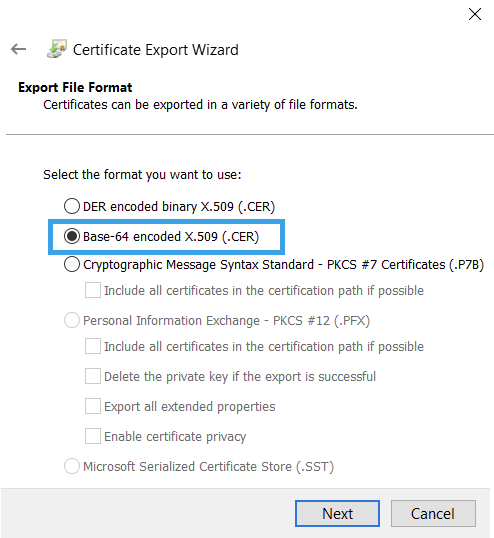
The certificate must be in base64 encoded X.509 format, it should look like this:
example.crt
-----BEGIN CERTIFICATE-----Something HERE.-----END CERTIFICATE-----To obtain the certificate:
Option 1 - download it using Microsoft Edge
Open the Management Interface website in the Microsoft Edge
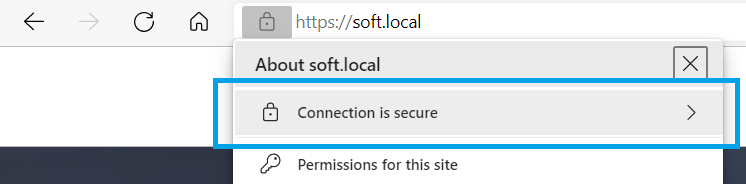
Click "Connection is secure"
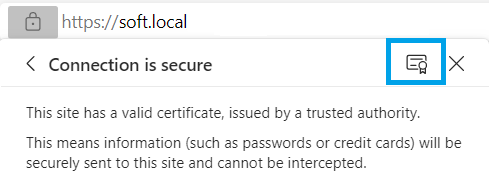
Display certificate details
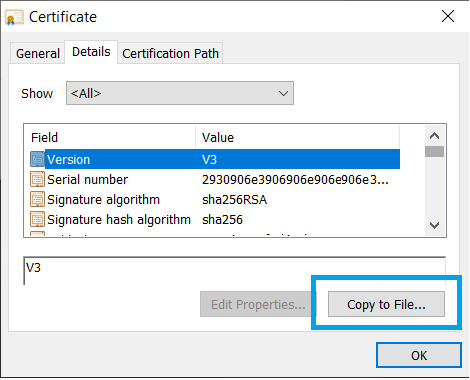
On tab "Details" click "Copy to File"
Use "Base-64 encoded X.509 (.CER)" in the Certificate Export Wizard and save the output to the file
Option 2 - download it using the sslscan application from the following website: https://github.com/rbsec/sslscan/releases/latest
sslscan.exe --show-certificate --no-cipher-details --no-ciphersuites --no-compression --no-fallback --no-groups --no-heartbleed --no-renegotiation --no-sigs <ManagementServerAddress>:443Extract the certificate from the command output and save it to a .crt file.
Import the certificate into the Windows Trusted Root Certification Authorities store.
Finally, execute the CLI import again