This page describes how to check if some port is occupied on MS Windows. Dispatcher Paragon requires various ports to be available and occupying required ports by third party applications may lead to various issues (e.g. failure during installation)
Netstat
It is possible to use windows build-in application netstat to display all occupied ports.
Example:
run the command-line as an administrator
launch command:
netstat -abno > ports.txtoutput from the command is written to ports.txt with content like this:
Proto Local Address Foreign Address State PIDTCP0.0.0.0:250.0.0.0:0LISTENING2412[hMailServer.exe]output means the port 25 is occupied by application hMailServer.exe
the following command would give the same info:
netstat -abno | findstr":25"
Task Manager
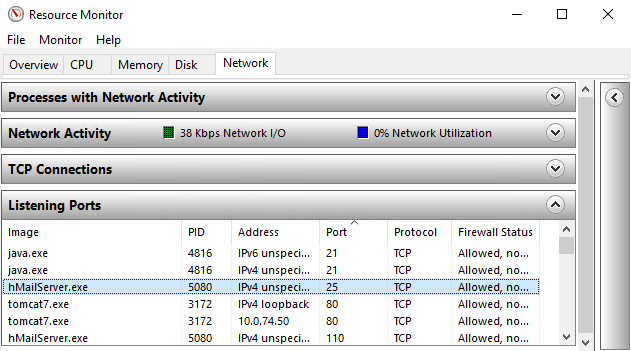
The list of occupied ports is available also in Task Manager -> tab Performance -> button "Open Resource Monitor" -> tab Network -> section Listening Ports
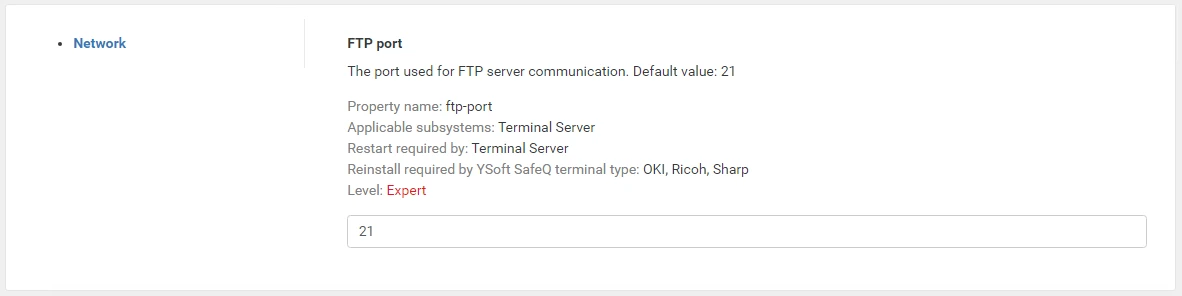
How to prevent Konica Minolta SafeQ from listening on a port
For example, to disable a binding to port 21 proceed as follows:
Log in as administrator to the Dispatcher Paragon web interface
Open the System menu
Change view to Expert
Find the settings for port you want to disable, for example "ftp-port"
Change value to 0
Save the settings
Restart relevant Dispatcher Paragon services
To enable the port again, fill in the port number. You can use the "Revert to default value" link to restore the original settings. Then restart the services.